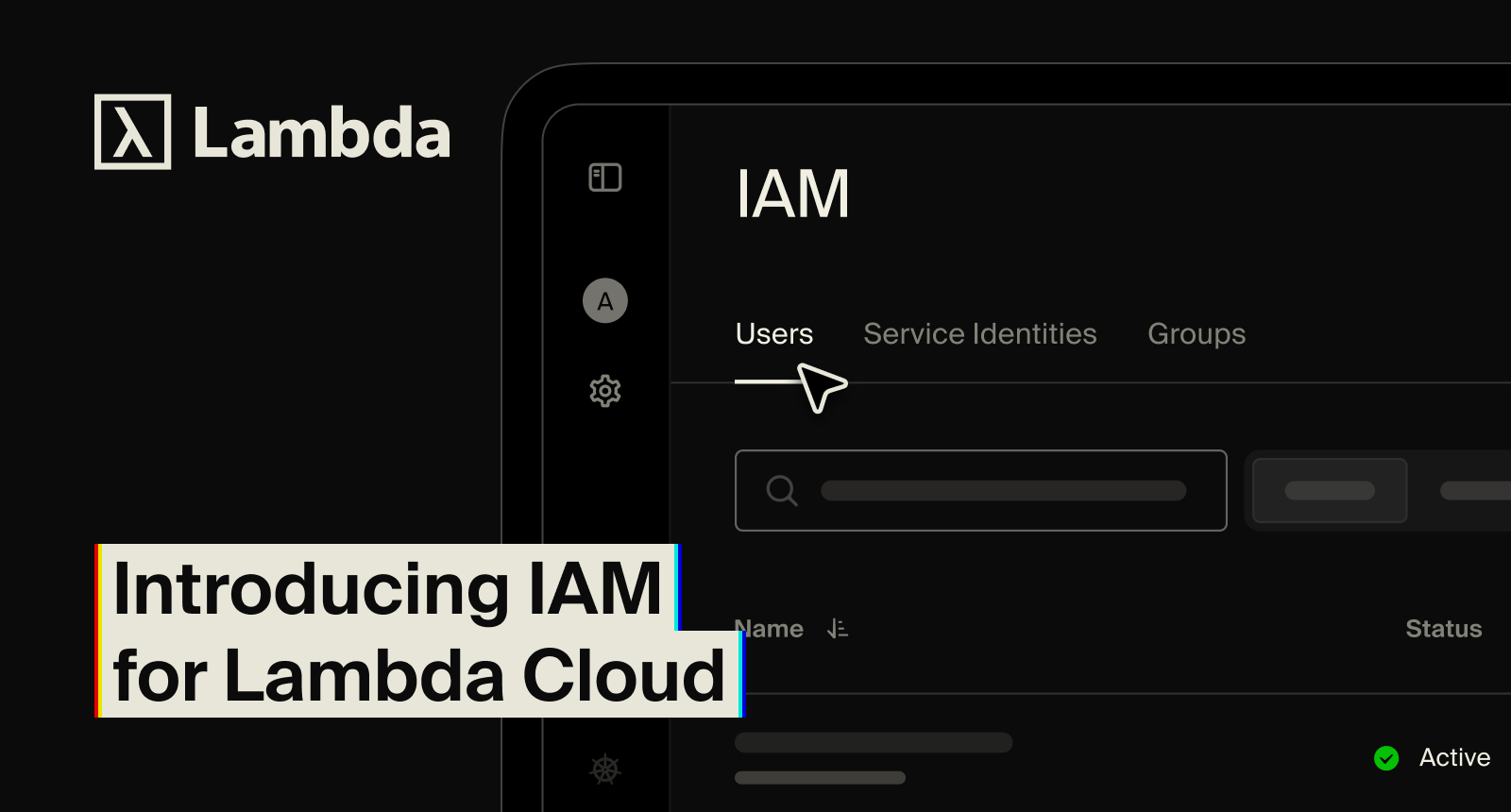
Role-based access control for your GPU cloud: roles, groups, and service identities are now in the Lambda Cloud console.
Picture the nightly job that cleans up idle instances. Until recently, it ran on someone's personal API key, which meant it could do anything that person could do. Lambda Cloud had two roles, Admin and Member, and every key carried its owner's full access.
Identity and access management (IAM) changes that. It brings role-based access control (RBAC) to Lambda Cloud, so admins can follow the principle of least privilege: each person, and each program, gets the access its work needs and nothing more. For enterprise teams with security reviews, that's now built into the console.
How it fits with workspaces
Workspaces decide where your resources live. IAM decides what someone can do once they're in one. To act on a resource in a workspace, you need both: membership in that workspace, plus a role that allows the action.
Roles, groups, and service identities
Open Account > Configuration > IAM, and you'll find tabs for users, service identities, and groups. Roles live on each one's details page.
- Users are the people in your account. A user's page shows their API keys, groups, and roles, and it's also where you remove someone.
- Service identities, similar to service accounts on other clouds, are accounts for software, like scripts and pipelines. Each gets its own keys and roles. You'll also see a few Lambda-managed ones; they're labeled, and they let us perform operations on your behalf, such as maintenance.
- Groups hold users and service identities. Assign a role to a group and everyone in it inherits it. Groups can join workspaces, too.
- Roles bundle fine-grained permissions at account or workspace scope. The predefined set includes Account Admin, IAM Admin, Billing Admin, Workspace Owner, Workspace Member, and Instance Reader.
Where to start
Give your automation its own identity. Pick one script that runs on a personal key. Create a service identity for it, grant only the roles it uses, and set an expiration date for its API key. A service identity can hold two keys at once, so you can rotate keys and revoke one from the identity's details page anytime. Then delete the old personal key, since it stays live until you do.
Set up groups by team. One group per team or job, with the right roles attached. That keeps user management simple: onboarding means adding a new hire to a group, and offboarding means removing them in one place.
Check effective access before you trust it. The effective access view shows every role an identity holds in each workspace, including anything inherited from a group. Group memberships are an easy way for access to quietly grow.
Good to know
- Account admins and IAM admins are the only people who can see or change IAM.
- Your existing setup keeps working. Admin and Member map to Account Admin and Account Member, and current API keys are untouched.
- Audit logs cover keys, identities, workspaces, and resources. They're recorded automatically and kept for six months.
- Each account can have up to 100 groups and 50 service identities.
- IAM is free. You pay only for the resources you run.
Get started
If you’re an account admin or IAM admin, open IAM and create your first service identity. The predefined roles page lists what each role allows, and the IAM overview covers the full model.